Visual grocery list: browse products by picture
Listonic’s catalog holds hundreds of products as pictures, sorted both by ordinary category and by diet, so keto, low-sugar, and high-protein sit beside fruit, vegetables, and dairy. Tap a category name to jump to another one. Add products by searching, by browsing, or from the Popular tab, and pair it with smart suggestions so your usual staples come back without being looked for.
Key takeaways
- The Listonic catalog shows products as photographs in a grid, so you add things by recognizing them rather than by spelling them correctly.
- Categories run by diet as well as by food type: keto, low-sugar, and high-protein sit alongside fruit, vegetables, and dairy.
- There are three ways in: search for a product, browse a category, or take one from the Popular tab.
- This is a catalog inside the app, not a printable picture list to hang on the fridge.
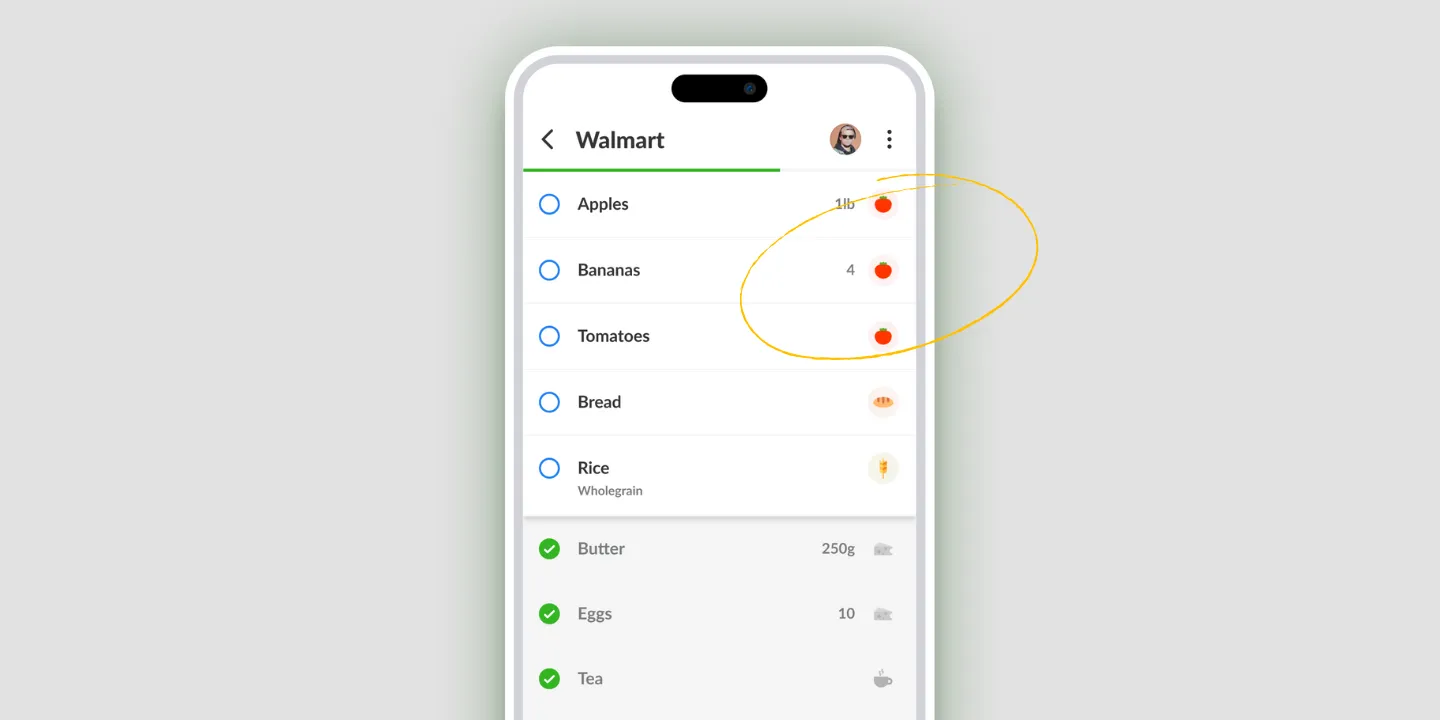
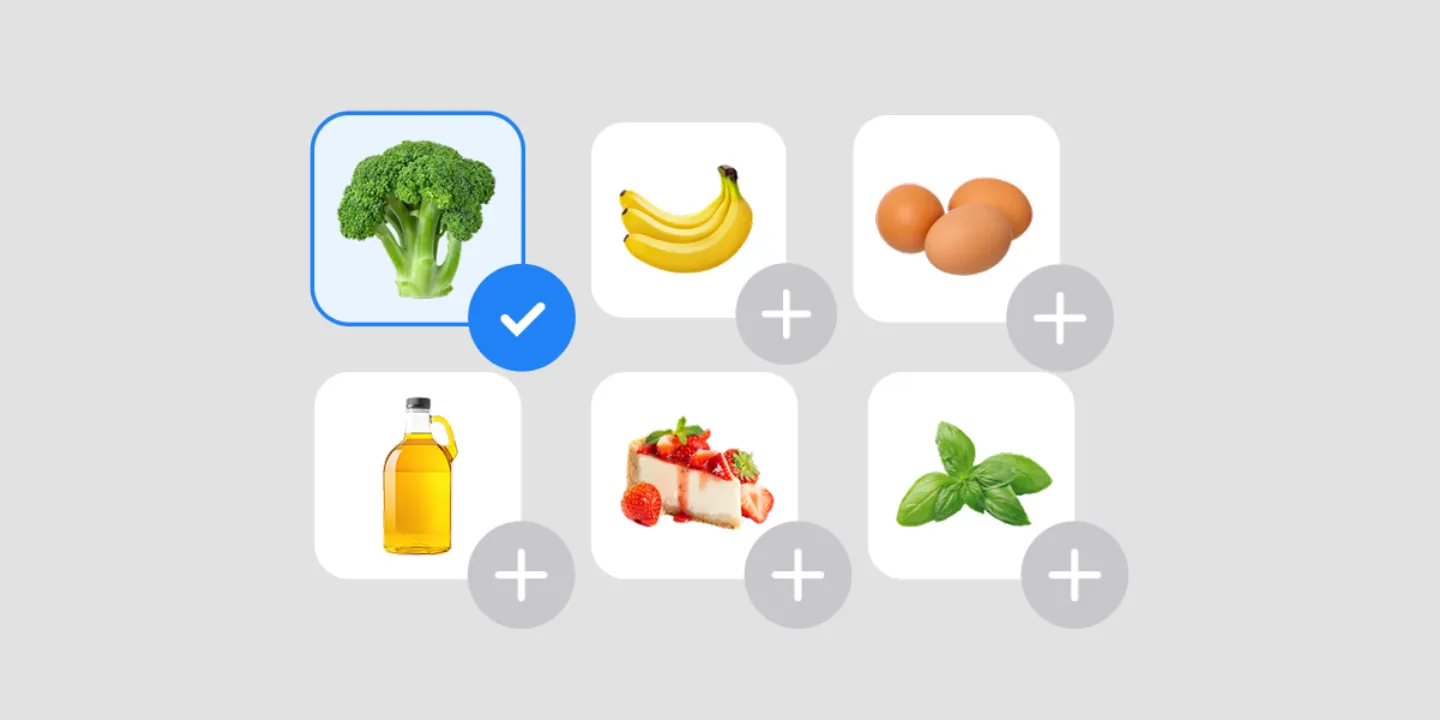
Spelling “zucchini” into a search box at 6:30 on a Tuesday is nobody’s idea of efficiency. A visual grocery list works the other way around: Listonic’s catalog puts hundreds of products on screen as photographs, and you add what you recognize.
What the visual catalog of products holds
Hundreds of everyday groceries, each as a picture with a button to put it on your list. Fruit, vegetables, dairy, bread, the things a weekly grocery run is mostly made of.
Browsing beats typing for two reasons, and neither is about speed alone. You don’t have to know how a product is spelled, and you get reminded of things you weren’t going to remember. A list built by typing contains exactly what you thought of. A list built by browsing contains a bit more.
Categories built around diets, not store aisles
Supermarket aisles are arranged for the supermarket. The catalog is arranged for what you’re eating.
So alongside fruit, vegetables, and dairy there are categories like keto, low-sugar, and high-protein. Restocking for a keto week is one category rather than a search you have to compose product by product, and browsing it turns up things you’d forgotten count.
Moving around is two taps: tap the category name to jump from dairy to vegan snacks and back. Browsing several categories in a row doesn’t mean returning to a menu each time.
Three ways to add a product
Pick whichever matches how much you already know.
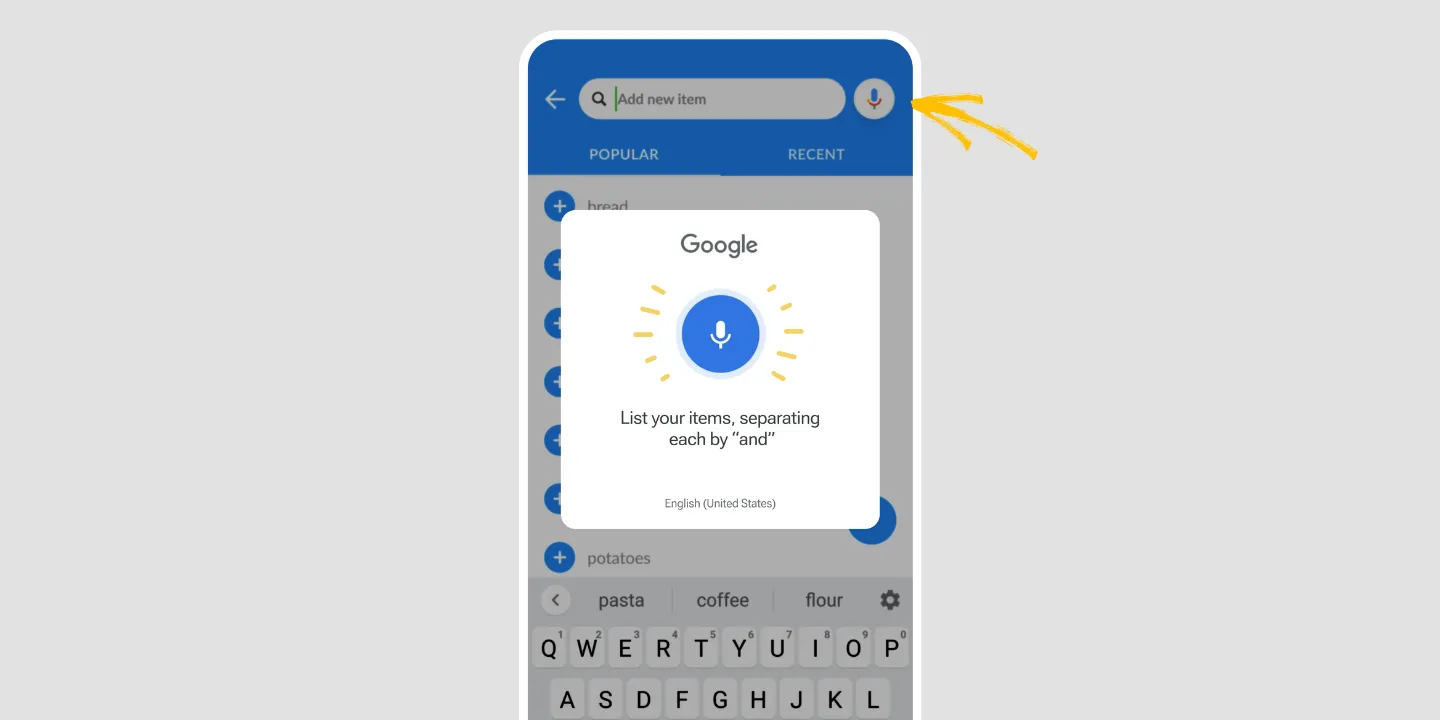
Search, when you know the product. Type enough of the name and add it.
Browse a category, when you know the meal but not the shopping list. Open the category and work down the pictures.
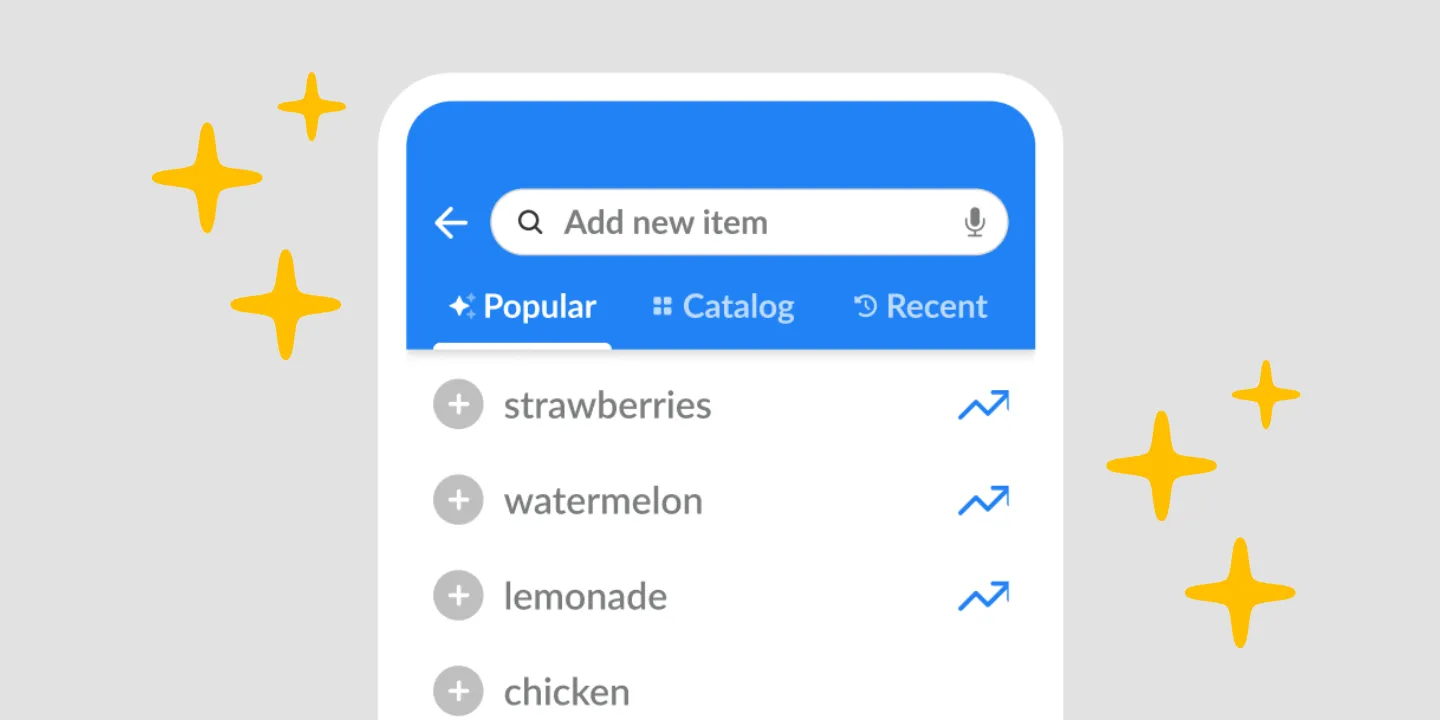
The Popular tab, when you want the obvious things you haven’t thought of yet. It’s the fastest way to catch a staple before you notice it’s missing.
- Open the list you’re adding to.
- Open the catalog.
- Search, browse a category, or open the Popular tab.
- Tap a product to put it on the list.
Pair the catalog with smart suggestions and the two cover different gaps: suggestions bring back what you always buy, the catalog shows you what you’ve never bought.
What it isn’t: a printable picture list
Worth saying plainly, because it’s the more common thing people mean by a grocery list with pictures. This catalog is inside the app. It’s for building a list on a phone.
It isn’t a sheet of pictures to print and hand to a child, and it isn’t a set of picture cards for someone who shops better from images than from words. Those are paper, and Listonic doesn’t make them. If that’s the search that brought you here, this feature won’t do the job.
Where the catalog works
| Platform | Product catalog |
|---|---|
| Android | Yes |
| iPhone and iPad | Yes |
How it compares to other list apps
For how Listonic’s catalog holds up against the product browsing in other list apps, see our head-to-head comparisons of the main grocery list apps.
FAQ
Can I browse groceries by diet rather than by food type?
The Listonic catalog carries dietary categories such as keto, low-sugar, and high-protein next to the ordinary ones like fruit, vegetables, and dairy, so a keto restock is a category rather than a search you have to compose.
How do I add a product from the catalog?
There are three routes into the Listonic catalog: type a name into the search bar, open a category and browse the pictures, or take something from the Popular tab. Any of them adds the product to the list you have open.
How do I move between categories?
Tap the category name. Going from dairy to vegan snacks takes two taps, so browsing several categories in a row does not mean going back to a menu each time.
Is the product catalog a printable picture list?
No. The catalog lives inside the Listonic app and is meant for adding products to a list on your phone. If you want a picture list on paper, for a child or for anyone who shops better from images than from words, this feature is not that.
Is the product catalog free?
Browsing the catalog and adding from it is part of the free Listonic app, with no cap on how many products you add and nothing to unlock first.