Open Listonic straight onto your last list
With "Open last list at launch" turned on, Listonic skips the home screen and opens the list you last had open, so reopening the app mid-trip puts you back where you were instead of two taps away from it. Switch the option off to land on the main screen and choose or create a list instead. It pairs with "keep the screen on", which leaves the list visible while you shop.
Key takeaways
- Open last list at launch makes Listonic skip the home screen and reopen the list you were using, which is what you want in the middle of a shopping trip.
- The option is a toggle in settings, so landing on the home screen every time is still available for people who keep several lists going.
- Keep the screen on is the companion setting: together they mean the list is in front of you without unlocking or navigating.
- Resuming the last list is about launching the app, not about reusing an old list, which is a different feature.
You put the phone away to load the car, or to answer someone, or because your hands were full. When you open Listonic again, the question is whether you’re back in your list or back at a menu.
What the setting does
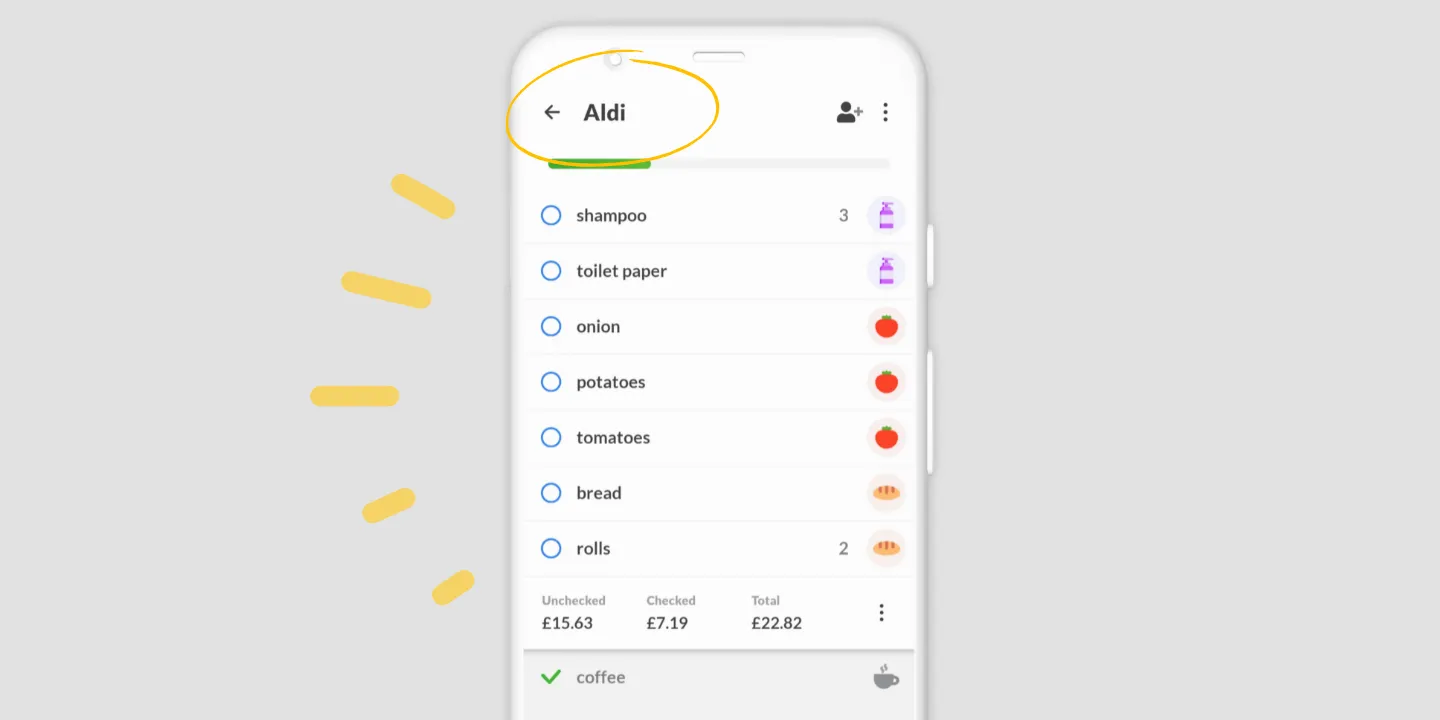
Open last list at launch makes Listonic skip the home screen. The app opens onto whichever list you had open, at the point you left it.
Mid-trip, that’s the difference between carrying on and navigating. Two taps isn’t much once. It’s a lot on the fifth time you pick the phone up in one store.
Turning it on, and off again
The option is a toggle in settings, and both positions are reasonable.
On suits the way most people shop: one list at a time, picked up and put down repeatedly over half an hour.
Off suits anyone running several lists at once, where landing on the main screen is the right start because which list you want isn’t a given.
Keep the screen on
The companion setting, and the two are better together than either alone. Keep the screen on stops the phone locking while the list is open, so you don’t unlock and navigate every time you look down.
One setting decides you arrive at the list. The other decides you stay there.
This isn’t a recurring list
Worth separating, because the two get confused and they solve different problems.
This setting is about the app’s behavior when it opens. It’s about navigation.
A recurring list is about not writing the same items out every week, which is what copying a list does, or letting your shopping history offer the regulars back.
You can want both. They’re set up in different places and neither substitutes for the other.
Where the setting works
| Platform | Open last list at launch |
|---|---|
| Android | Yes |
| iPhone and iPad | Yes |
How it compares to other list apps
For how Listonic’s launch behavior and list handling hold up elsewhere, see our head-to-head comparisons of the main grocery list apps.
FAQ
How do I make Listonic open my last list?
Turn on "Open last list at launch" in the settings. The app then bypasses the home screen and opens whichever list you had open last.
How do I go back to starting on the home screen?
Switch the same option off. Every launch then lands on the main screen, which suits anyone keeping several lists going at once rather than working through one at a time.
What setting works well alongside it?
Keep the screen on leaves the list visible while you shop, so the phone does not lock between aisles. With both on, the list is there when you look at it.
Is this the same as a recurring shopping list?
No. This setting decides what you see when the app opens. A recurring list is about not retyping the same items week after week, which is what copying an earlier list does.