Copy a shopping list instead of writing it again
Most of a weekly shopping list is the same week to week, so Listonic lets you copy single items or a whole list rather than writing it out again. Copy into a brand new list or into one you already have, then edit what changed. Keep a separate list for groceries, holidays, birthdays, or DIY: there is no cap on how many lists you keep, and you can make them without an account.
Key takeaways
- Copying moves either a whole Listonic list or the specific items you pick out of it, into a new list or into one that already exists.
- A copied list is an ordinary list from the moment it appears, so the weekly edit is deleting what you do not need rather than typing what you do.
- There is no cap on how many lists you keep, and lists can be created without a Listonic account.
- Copying is for a list you already made; suggestions from your shopping history and a ready-written master template are two different answers to the same problem.
Next week’s shopping list is mostly this week’s shopping list. The same bread, the same coffee, the same thing you forget every time. Copying is Listonic’s answer to retyping it: take the list you already made, or the parts of it you want, and start from there.
Copy a whole list, or pick the items out of it
Two ways to copy, and the choice is about how much of the old list still applies.
Copy the whole list when the trip repeats. The weekly grocery run, the same camping trip, the monthly restock. What arrives is a full list, and your job shrinks to deleting the two things you don’t need this time.
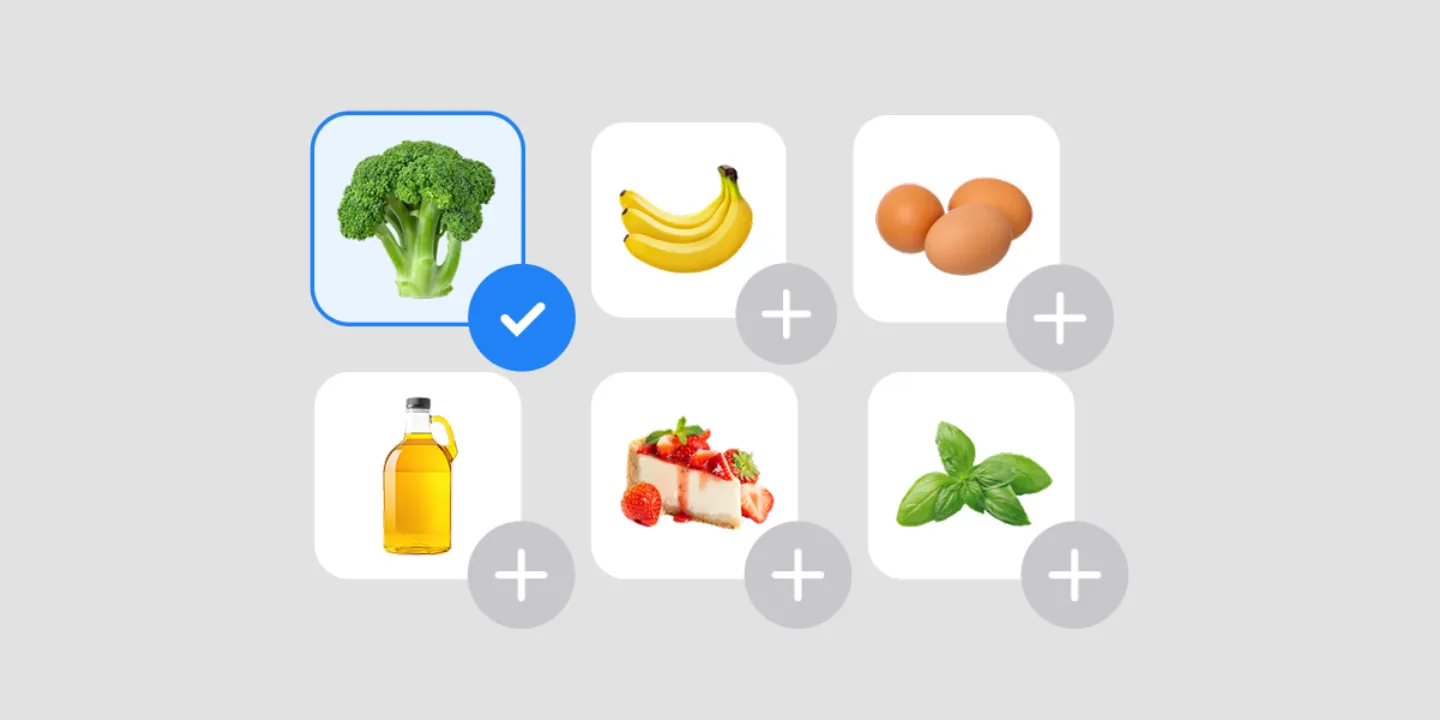
Copy selected items when only part of it applies. A long holiday list might hold six things worth carrying into a normal week, and copying only those is faster than making a new list and typing them.
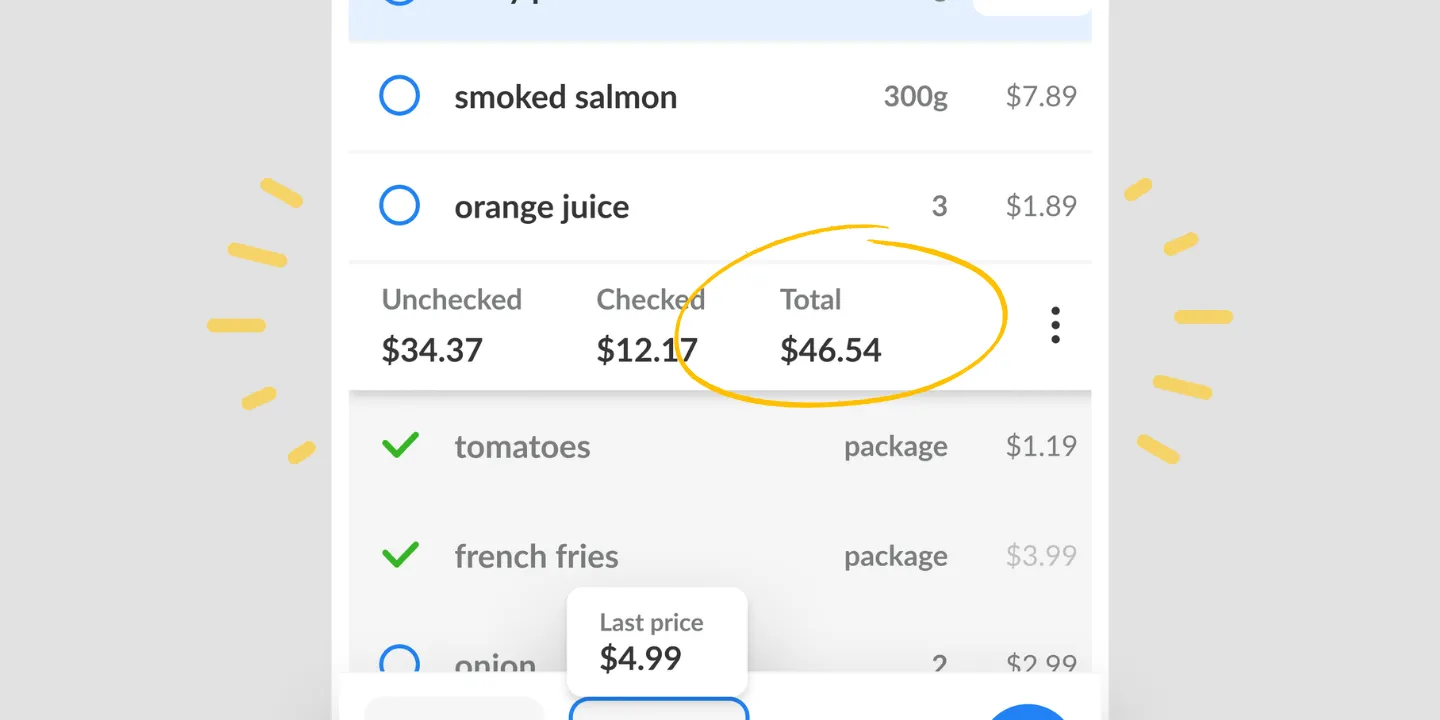
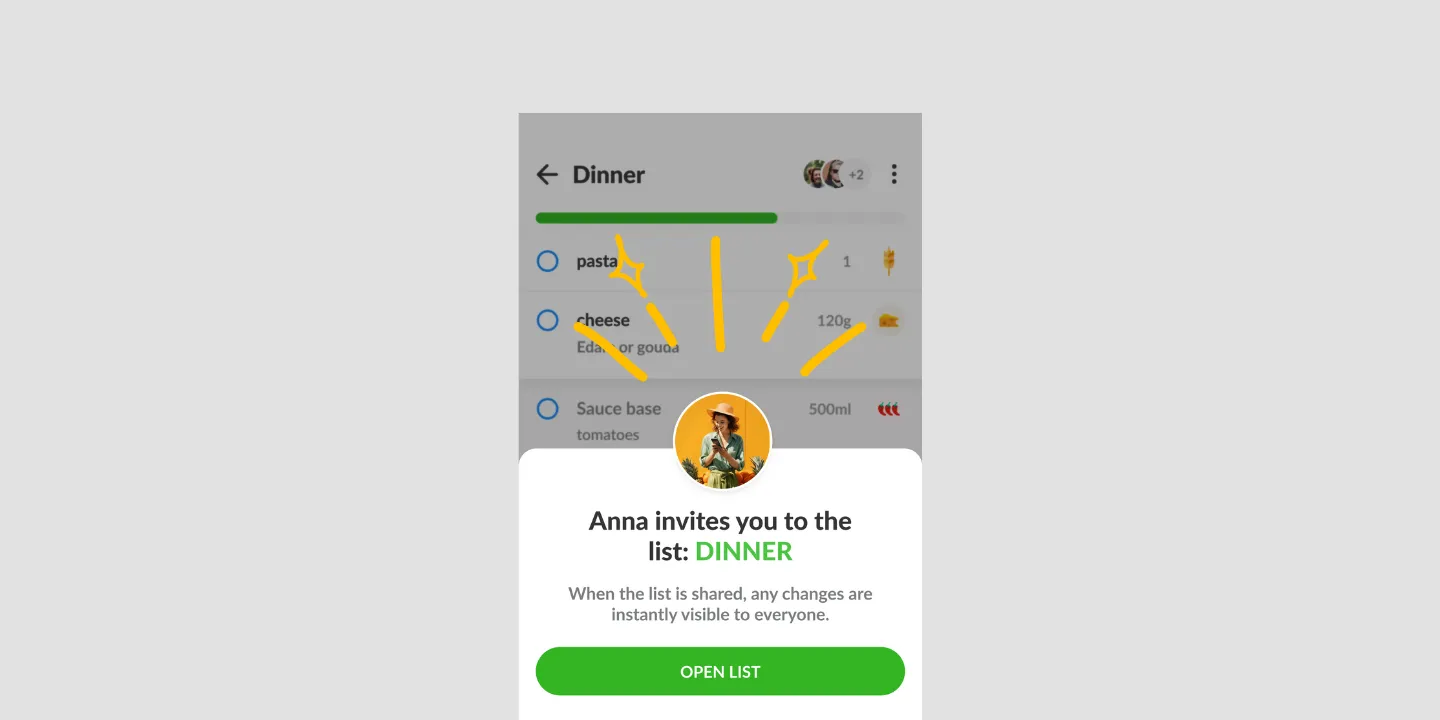
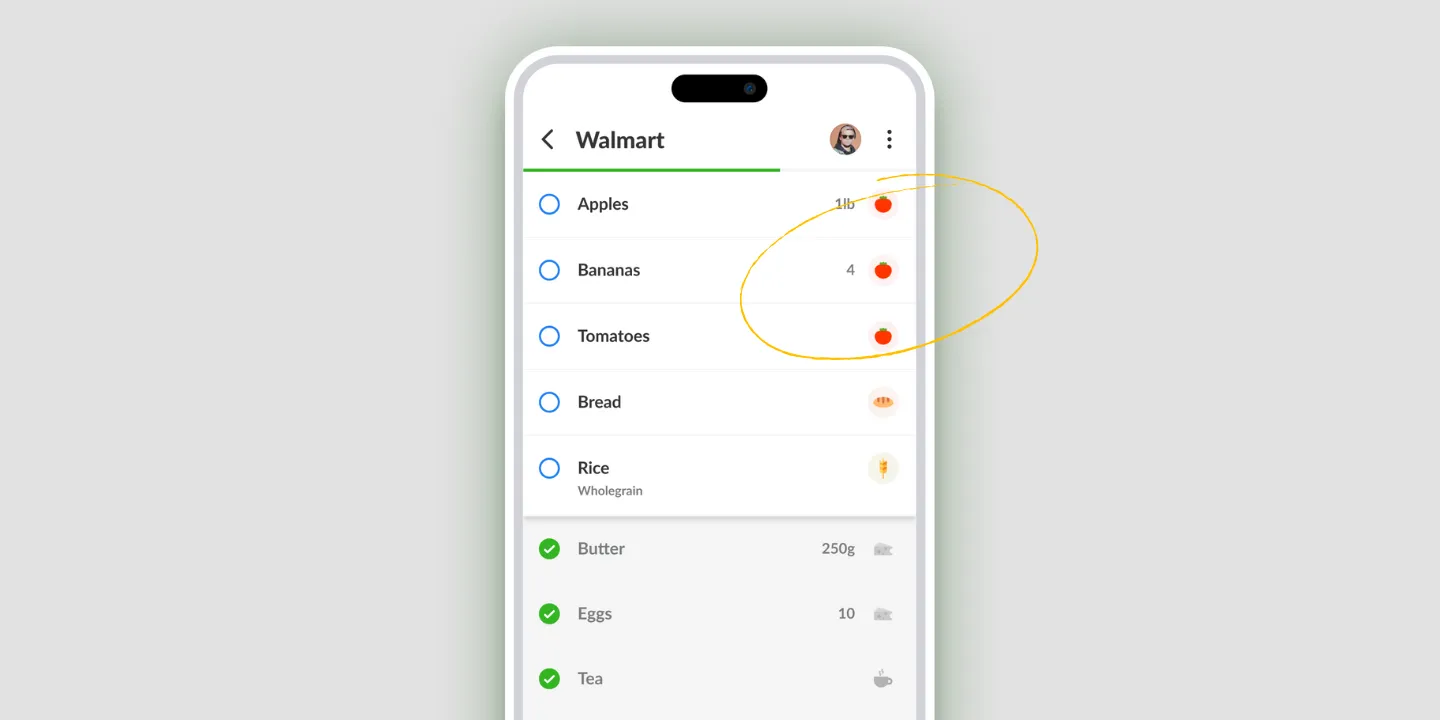
Either way the result is an ordinary Listonic list: add to it, share it, sort it, add prices. Nothing about it says it was copied.
How to copy a list in Listonic
- Open the list you want to take items from.
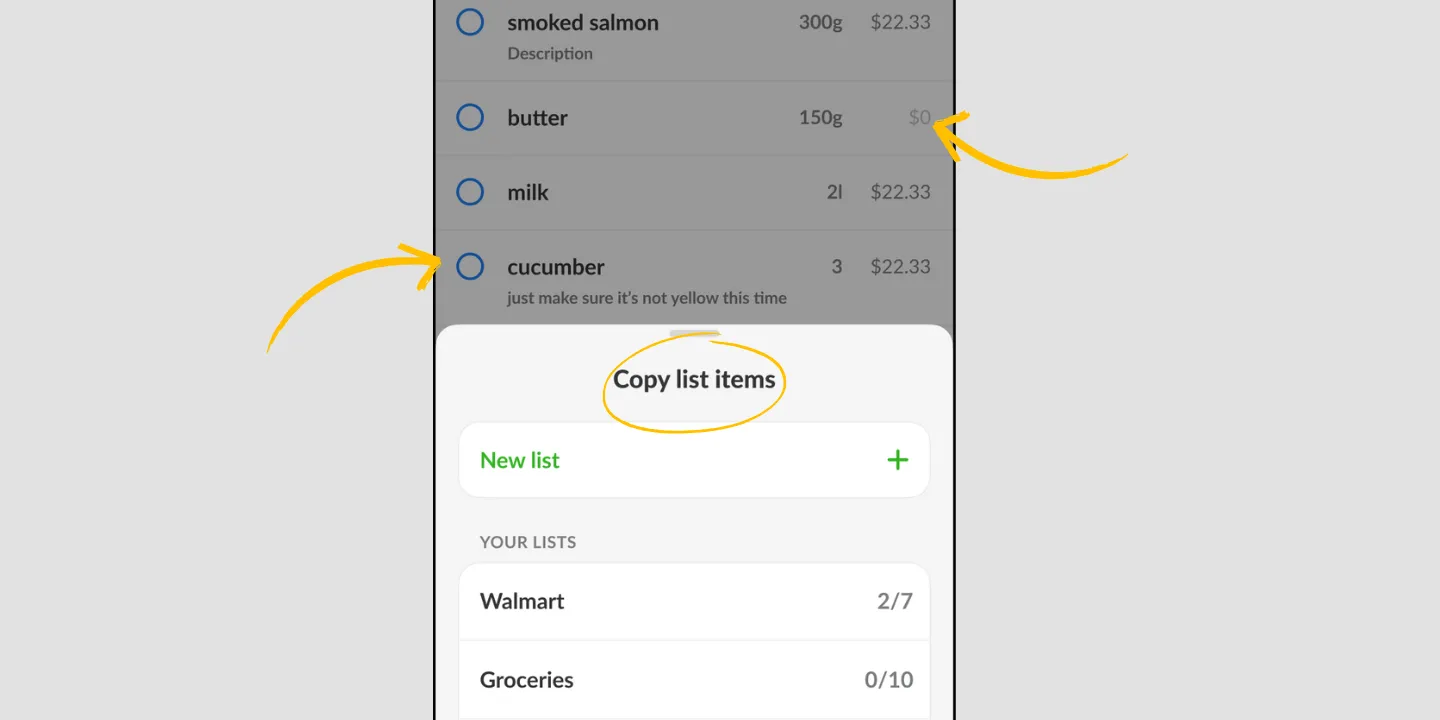
- Open the copy option and choose whole list or selected items.
- Choose where they go: a brand new list, or a list you already have.
- Edit what changed since last time.
That fourth step is the whole point. Starting from a list that is mostly right is a different job from starting from an empty screen, and it’s the difference between making a list and remembering a list.
Keep a list per occasion
There’s no cap on how many lists you keep, so there’s no reason to run everything through one.
Groceries, a holiday, a birthday, a DIY job: each keeps its own list, and each is worth copying at different times. The holiday list comes back every year. The DIY list comes back every time you start something. You can create them without an account, and an account is what makes them follow you onto a second device.
Copying, history, and a master list are three different things
Three Listonic answers to “I don’t want to type this again”, and they aren’t interchangeable. Picking the wrong one is why this feels harder than it is.
Copy a list when the thing you want already exists as one of your lists. It’s yours, it’s specific, it’s last week’s.
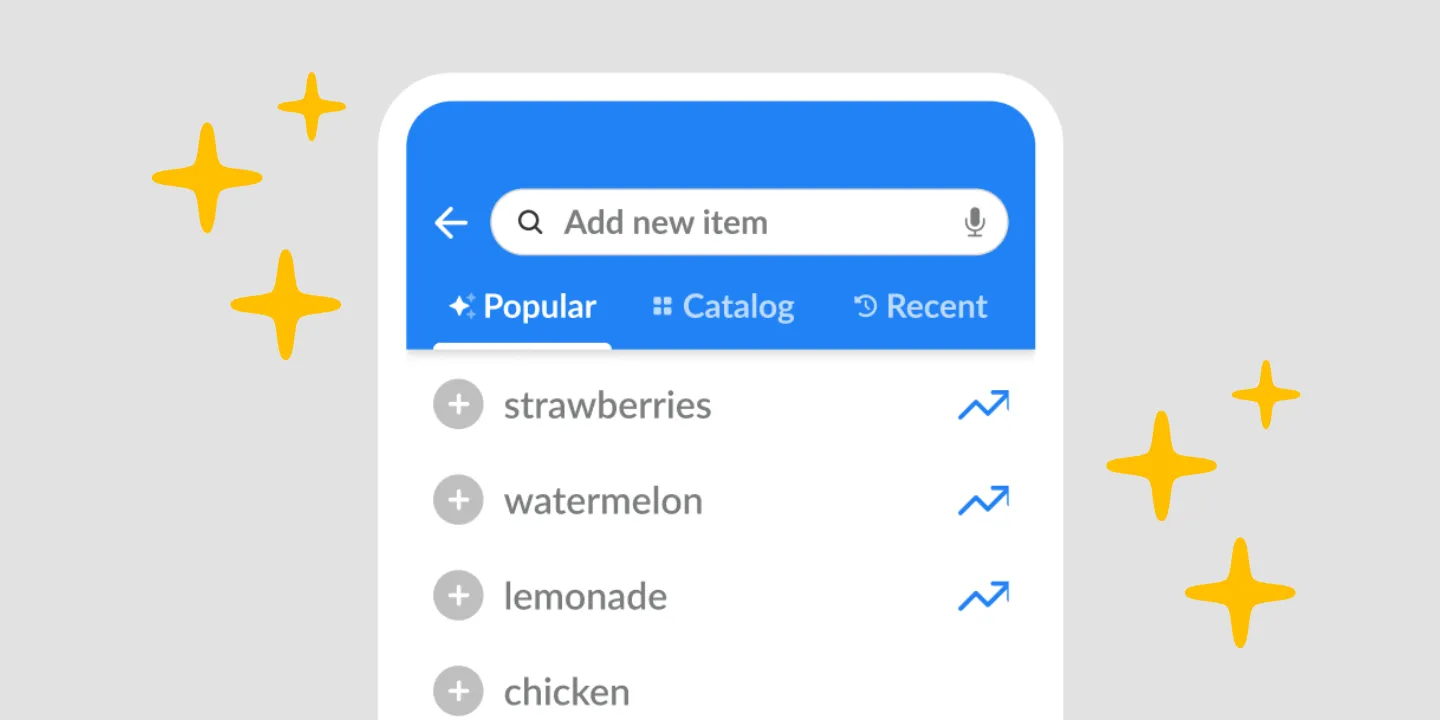
Shopping history and suggestions when you don’t want to look anything up. Listonic offers what you buy most often as you build a list, so frequent items arrive without being asked for. That’s shopping history, not copying.
A master grocery list when you want a good list you never wrote. That’s a ready-made one to start from rather than something out of your own history, and ours lives on the blog as a premade master grocery list template.
Most people end up using all three: a template to set up the first real list, copying to repeat it, and history to catch what both missed.
Where copying works
| Platform | Copy items and lists |
|---|---|
| Android | Yes |
| iPhone and iPad | Yes |
How it compares to other list apps
For how Listonic handles list reuse against the way other apps do it, see our head-to-head comparisons of the main grocery list apps.
FAQ
How do I stop writing the same shopping list every week?
Copy last week’s list in Listonic and edit it instead of starting from nothing. Most of a weekly list is the same every time, so the work left is removing a few things and adding whatever is new.
Can I copy only some items instead of the whole list?
Listonic copies either the entire list or the specific items you select, so a big list can donate the six things you actually want without bringing the rest along.
Can I copy items into a list I already have?
The copy sheet offers a brand new list or one that already exists, so items can be folded into a list in progress rather than always landing somewhere fresh.
How many lists can I keep in Listonic?
There is no cap on how many lists a Listonic account holds, which is what makes a list per occasion practical: groceries, a holiday, a birthday, and a DIY job can each keep their own.
Do I need an account to make lists?
Lists can be created in Listonic without an account. An account is what lets the same lists follow you onto another device.