Check off a whole shopping list in one action
Listonic marks every item on a list as done in one action instead of ticking products off one by one, which is how a shopping trip ends when you stopped checking things halfway round. The same menu holds the opposite action, unchecking everything, which is what you want when the goal is to reuse the list rather than to finish it.
Key takeaways
- One action marks an entire Listonic list as complete, so ending a trip does not mean tapping through twenty items you already bought.
- Checking everything off is for finishing a list; unchecking everything is for reusing one, and they sit next to each other in the same menu.
- Deleting the checked-off items afterwards leaves only what is still outstanding, which is what keeps a rolling list readable.
- This is one action out of the wider set Listonic applies to a whole list at once.
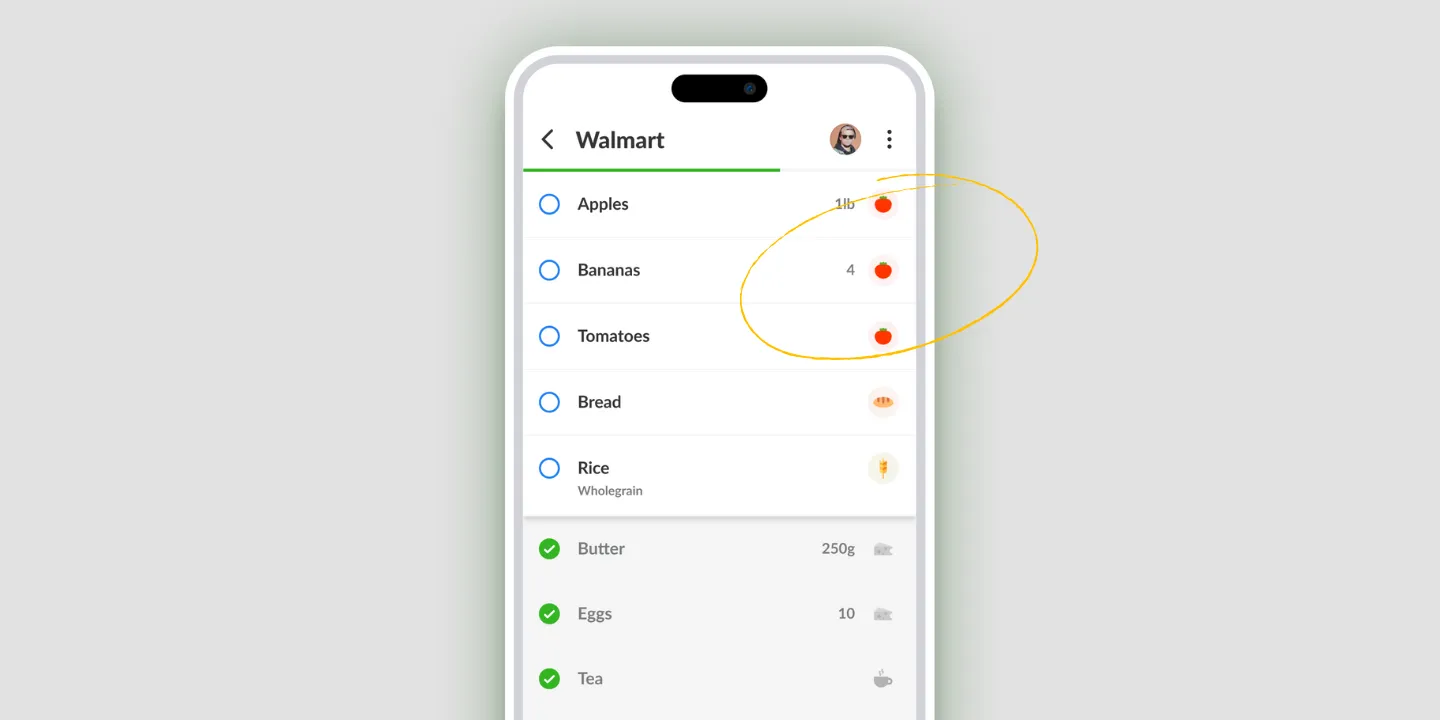
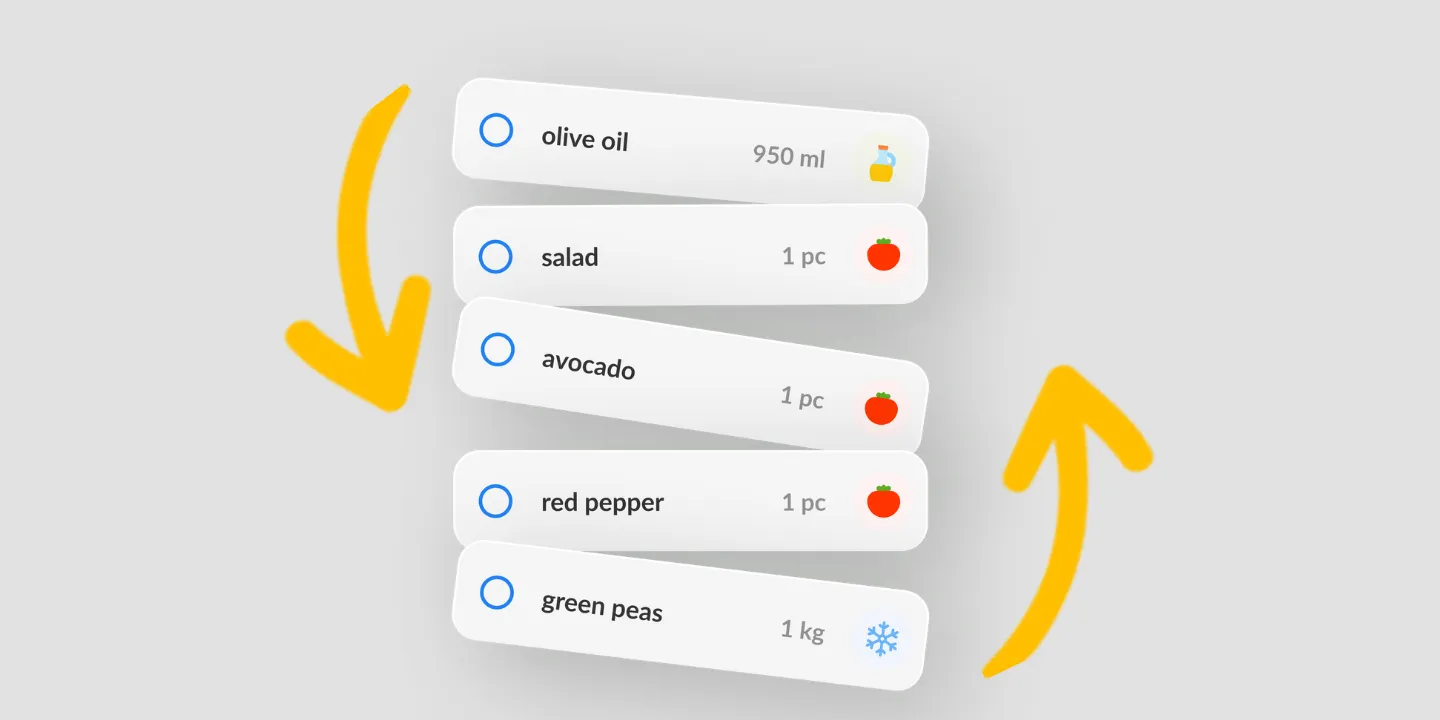
Halfway round the store you stop ticking things off. You still buy them. You get home with a list that says you bought four of twenty-two items and a memory that says otherwise. One action fixes that: mark the whole list done.
One action instead of twenty taps
Checking off all items marks every product on the list as complete in a single move. No scrolling, no tapping down the list to make the record match what’s already in the bags.
It’s a small function with an obvious job, and the job is reconciliation rather than shopping. The list stopped being accurate somewhere near the freezers, and this is how it catches up.
Finishing a list and resetting one are different actions
The same menu holds both and they’re easy to confuse, so it’s worth being exact.
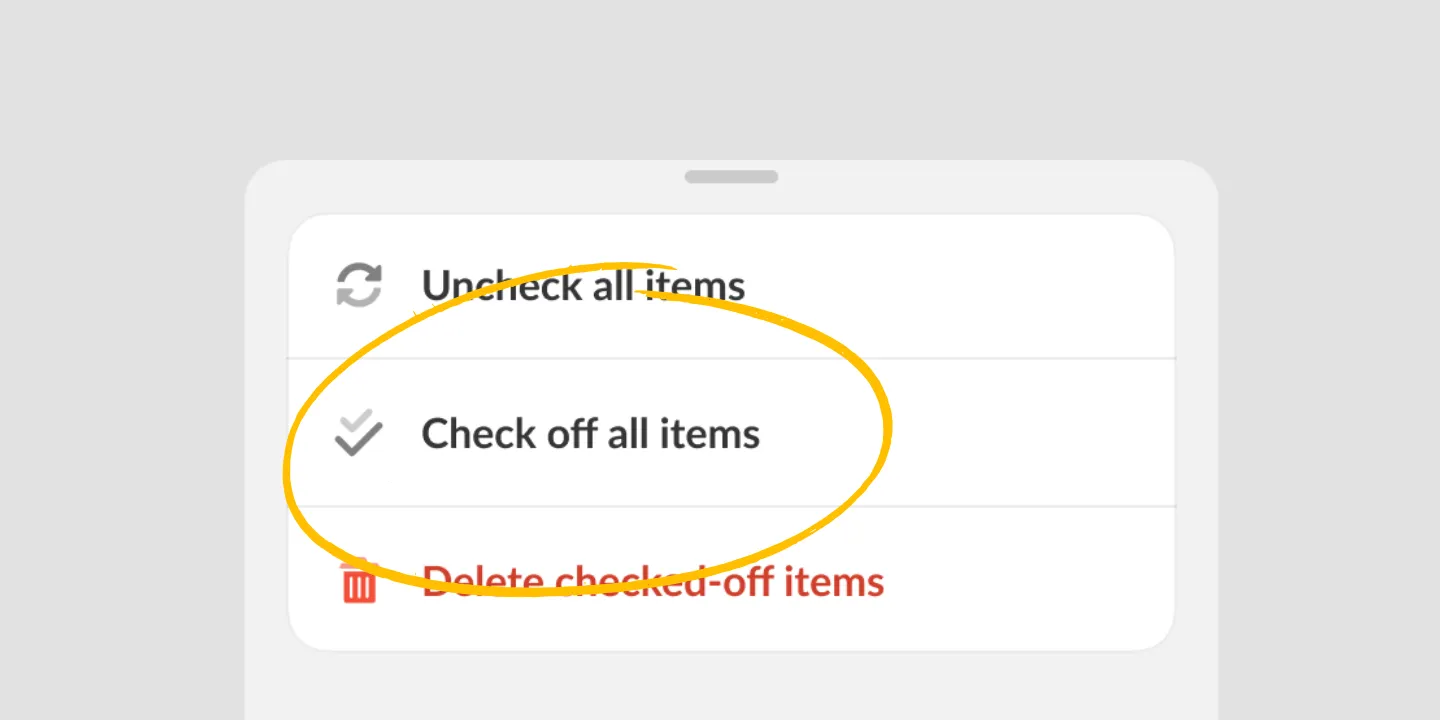
Check off all items says this is done. Use it at the end of a trip.
Uncheck all items says this is ready again. Use it when last week’s list is this week’s list and you want it back to zero.
People reaching for the first when they mean the second is the common mistake, because both produce a “clean” list in a loose sense. They produce opposite ones.
Then clear what’s finished
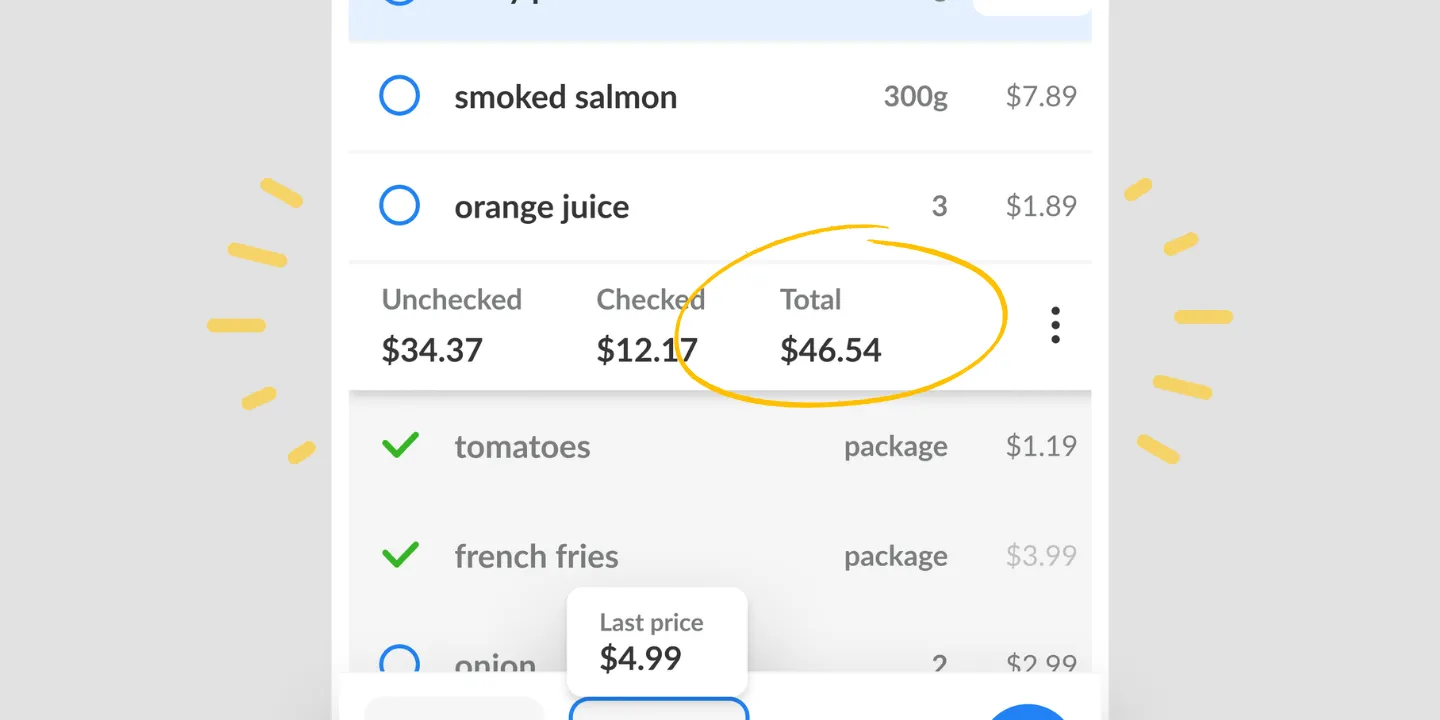
Once a list is checked off, deleting the checked-off items leaves only what’s still outstanding. On a list you shop in two goes, that’s the action that keeps it readable: what remains on screen is what you still need, not a record of what you already bought.
Both of those live in the same place, covered on the bulk actions page along with the rest of what Listonic can do to a whole list at once.
Checking off one item at a time
If what you want is the ordinary act of ticking something off as you put it in the cart, that’s a tap or a swipe, and it’s covered on its own page. This page is for the moment you want the whole list dealt with at once.
Where it works
| Platform | Check off all items |
|---|---|
| Android | Yes |
| iPhone and iPad | Yes |
How it compares to other list apps
For how Listonic handles finishing and reusing lists against the way other apps do, see our head-to-head comparisons of the main grocery list apps.
FAQ
Can I check off a whole shopping list at once?
One action marks every item on a Listonic list as complete, so you do not tap through it product by product at the end of a trip.
When is checking everything off the right action?
At the end of a trip, particularly the common one where you stopped ticking things halfway round and came home with a list that is half checked and entirely bought.
I want the list back to zero. Is this the action I want?
No, that one is unchecking everything, which sits in the same menu. Checking off marks the list finished; unchecking makes a finished list usable again for the next trip.
How do I get rid of the items once they are checked off?
Deleting the checked-off items removes everything marked done and leaves the rest, so a part-shopped list shows only what is still outstanding.